How to Pay Meralco Using GCash (Step-by-Step Guide)
Learn how to pay your Meralco bill using GCash quickly and securely. This complete guide walks you through every step, including screenshots, tips, and common mistakes to avoid.
Paying your Meralco bill using GCash is one of the fastest and most convenient ways to settle your electricity expenses. Instead of visiting payment centers or waiting in long queues, you can complete the entire process directly from your smartphone in just a few minutes.
GCash is one of the most widely used mobile wallets in the Philippines, offering services such as bill payments, money transfers, and online purchases. Because it integrates with major billers like Meralco, it allows users to manage utility payments efficiently from a single app.
Before you begin, ensure that you have a stable internet connection and enough balance in your GCash wallet. It is also important to have your Meralco account number and the exact amount due, which can be found on your billing statement. Entering accurate details ensures that your payment is processed correctly and credited to the right account.
This guide provides a clear, step-by-step process so you can confidently pay your Meralco bill using GCash without errors or delays.
Step-by-Step Guide
Step 1: Open the GCash App
Launch the GCash app on your phone and log in using your MPIN. Make sure your wallet has enough balance to cover your bill.
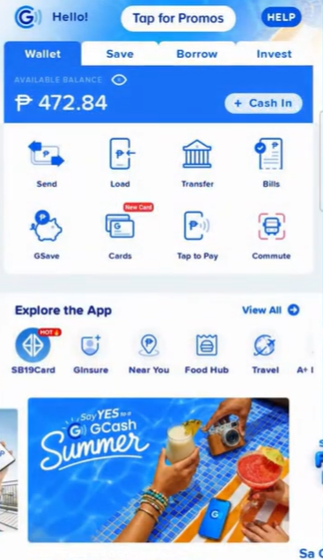
Step 2: Tap “Pay Bills”
On the dashboard, locate and tap the “Pay Bills” option. This section contains all supported billers.
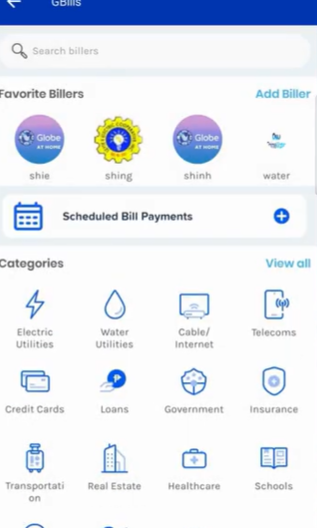
Step 3: Select Electric Utilities
Choose the “Electric Utilities” category to filter electricity providers. Scroll or search for Meralco.
Step 4: Select Meralco
Tap Meralco from the list. You will be directed to the payment form where you can input your billing details.
Step 5: Enter Payment Details
Input your account number and the exact amount due. Double-check all details carefully to avoid errors.
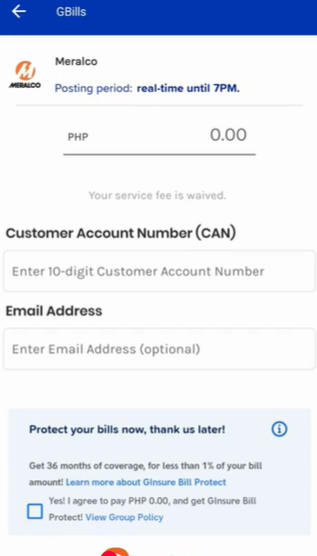
Step 6: Confirm Payment
Review the summary shown on your screen. Once everything is correct, confirm the payment and complete any required authentication.
Step 7: Save Your Receipt
After payment, you will receive a confirmation message and reference number. Save this for your records and verification.
Important Tips
Always enter the exact amount shown on your bill to prevent payment issues. Double-check your account number before confirming. If you want a receipt sent to your email, make sure to enter your email address during the payment process.
Payments usually reflect quickly, but in some cases, it may take up to 24 hours. If your payment does not reflect immediately, do not panic—keep your reference number and check again later.
Frequently Asked Questions
1. Can I pay Meralco using GCash?+
Yes, GCash fully supports Meralco bill payments.
2. Is GCash payment instant?+
Most payments are processed quickly but may take up to 24 hours.
3. Do I need MRN?+
You typically only need your account number and amount.
4. Is there a fee?+
Some transactions may include a small convenience fee.
5. Can I pay overdue bills?+
Yes, as long as your account is still active.
6. Can I pay someone else’s bill?+
Yes, you only need their account number.
7. What if I enter wrong details?+
Contact GCash support immediately.
8. Will I get a receipt?+
Yes, via app, SMS, or email.
9. Can I schedule payments?+
No, GCash requires manual confirmation.
10. Is it safe?+
Yes, GCash uses secure authentication.
11. Why is Meralco not showing?+
It may be due to maintenance or app updates.
12. What if payment fails?+
Check balance and retry or contact support.
13. Can I pay partial amount?+
Full payment is recommended.
14. How long does posting take?+
Usually within minutes to 24 hours.
15. What is the safest method?+
Using official GCash app is safe and reliable.
Open GCash and Pay Now